
Parental Control App Blocker
Kid security LLPParenting
4.6496.00 Reviews
- Version
- 1.500
- Installs
- 5.00M
- Age Rating
- Everyone
Screenshots

Our Review of Parental Control App Blocker
 Analysis by Appyee
When it comes to keeping tabs on our kids' digital lives, the Parental Control App Blocker is like having a digital lifeguard on duty 24/7. I got my hands on this app to see what all the fuss is about, and let me tell you, it’s packed with features that make parenting in the digital age a tad less nerve-wracking.
Who benefits most from this kind of oversight?
I think this app makes the most sense for a family that wants several kinds of parental oversight in one place: app and website controls alongside location awareness. That combination can be useful when a child is beginning to use a phone more independently, or when caregivers need a shared routine for checking in. It is less compelling for a parent who only wants to set a bedtime limit; the built-in family controls on a phone may be a simpler place to start.
A practical way to use controls like these is to agree on a small number of rules before switching them on. For example, a parent and child might choose together which apps are appropriate during homework time and what should happen when a blocked page appears. That makes a restriction easier to explain than an unexplained alert or sudden lockout. I would treat the app as a support for a conversation, not a substitute for one.
Parental Control App Blocker is a free parenting app from Kid security LLP. It is rated for Everyone, has a 4.5 average from around 80,000 ratings, and has been installed over a million times. Its current version is 1.484, and it runs on Android 7.0 or later. Optional in-app purchases range from $1.99 to $399.99 per item, so I would check the purchase details carefully before committing to anything beyond the free app.
Getting Started with Peace of Mind
Setting up the Parental Control App Blocker is straightforward, even for someone like me who isn't a tech wizard. You download the app, create an account, and then sync it with your child’s device. The interface is intuitive, and I appreciated the step-by-step guidance it offers to ensure everything is set up correctly.
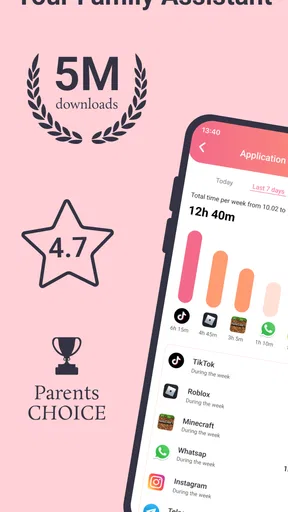
Once it’s up and running, you’ll find a dashboard that gives you a bird’s-eye view of your child’s digital activity. It’s like having a window into their online world without being intrusive. You can see what apps they’re using, how long they’re using them, and even set time limits. It’s all about balance, right?
Readability, navigation, and a workable routine
For a parent who feels uneasy digging through phone settings, a guided setup and a central dashboard can lower the initial barrier. Still, I would not assume that a dashboard makes every choice obvious. The useful workflow is to make one change at a time, then check whether it does what you intended before adding more restrictions. If several settings are changed together, it can be harder to identify which one caused an unexpected block or alert.
That step-by-step approach is especially helpful when more than one adult cares for the child. Rather than each person changing limits independently, agree on a shared routine: who checks the dashboard, what counts as a reason to adjust a rule, and how the child can ask for an exception. This reduces the chance that a parent sees a notification and reacts before understanding its context.
Features that Stand Out
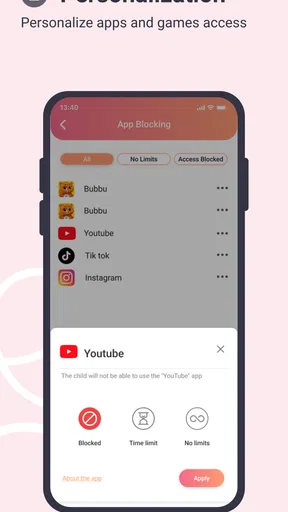
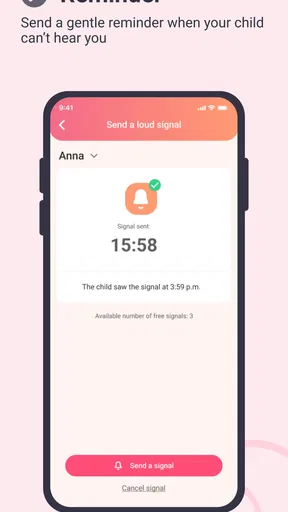
One of the standout features is the content filtering. You can block inappropriate websites and apps with a few taps. It’s like having a safety net for their curious clicks. Plus, the real-time alerts are a godsend. If your kiddo tries to access something off-limits, you’ll get a notification, which means you can address it pronto.
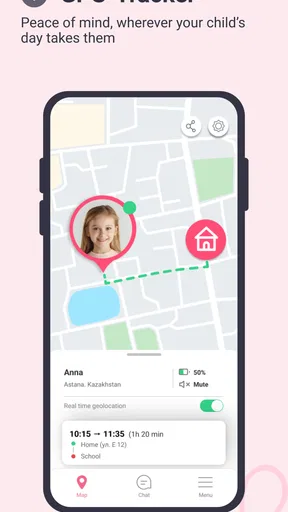
Another cool feature is the location tracking. It’s not just about knowing where they are, but also ensuring they are where they say they should be. And don’t worry, it’s not creepy—it’s smart parenting! The app also offers geofencing, allowing you to set safe zones and get alerts if they wander off the beaten path.
Using controls without turning alerts into noise
Alerts are most useful when they prompt a clear, proportionate response. If a child taps a blocked site by mistake, that is different from repeatedly trying to get around an agreed rule. I would use a notification as a reason to ask what happened, not as automatic proof of bad intent. Too many alerts can make a parent tune them out, so it helps to decide in advance which situations genuinely need a conversation.
For location features, a sensible use is a specific transition, such as checking whether a child has arrived at an agreed place. Geofencing can be reassuring in that context, but it should not become a running substitute for trust or a way to monitor every movement. Tell the child what is being checked and why. If location information is not useful for your family’s actual routine, there is little benefit in enabling it just because it is available.
A realistic after-school routine might look like this: a caregiver checks whether the child has reached the expected place, then leaves the phone alone unless an alert calls for attention. Later, if screen limits interfere with homework or a necessary call, the family can review the rule together rather than repeatedly overriding it in the moment. That keeps the app in a supporting role and makes its controls easier to live with.
Motor, sensory, and situational access
Simple navigation and guided setup can help someone who is less comfortable with technology, but they do not by themselves establish that the app suits every ability. A caregiver with limited dexterity may find frequent small taps or several settings changes tiring, while someone who has difficulty reading a busy screen may prefer to make adjustments slowly and with another adult. I would test the main tasks—checking an alert, changing a limit, and reviewing a location setting—before relying on them in a stressful moment.
Notifications also have a situational side. A parent may not be able to respond while driving, working, or caring for another child, so an alert should not be treated as an emergency channel. Decide when you will review routine activity, and handle urgent safety plans through the family’s usual direct communication. If sounds or repeated notifications are distracting, think carefully about which alerts you actually need to notice promptly.
Accessibility is also about the child’s experience. Restrictions can be confusing if they appear without explanation, particularly when a device is being used for school, communication, or an agreed activity. Before setting limits, consider what the child needs the phone for and explain how to ask for help if a block gets in the way. A rule that works during leisure time may be inappropriate during a lesson or a family journey.
Learning the Ropes
There’s always a learning curve with new apps, and this one is no different. It took a little time to get used to all the settings and features. But once I got the hang of it, managing everything became second nature. The app also offers a plethora of resources and tips on how to talk to your kids about digital safety, which I found incredibly helpful.
The app’s design is user-friendly, making it accessible for parents who might not be super tech-savvy. The support team is also just a message away if you run into any hiccups. It’s reassuring to know help is at hand when you need it.
Limits, alternatives, and practical trade-offs
The main trade-off is that broad monitoring can feel like more control than a family needs. If your goal is only to pause games at night or set a simple device schedule, the phone’s native parental settings may be easier to maintain and may avoid adding another account and dashboard to a parent’s routine. If you want app restrictions, web filtering, and location tools together, this app’s wider scope may be more useful, provided you are willing to learn and manage the settings.
Families should also consider the child’s age and the level of independence they are ready for. A younger child may need clearer boundaries and more frequent guidance, while an older child may respond better to negotiated limits and transparent location checks. The same rule should not automatically apply to every child in a household. Review restrictions when routines change, rather than letting old settings quietly become permanent.
For a first trial, I would choose one low-stakes setting, explain it to the child, and see how it behaves over a normal day. Check whether the limit fits the family schedule, whether alerts arrive at useful times, and whether the child can tell what to do when access is blocked. This is a better test than enabling every control at once, because it reveals friction before the app becomes central to a routine.
Remaining barriers to consider
Parental controls cannot resolve disagreements about screen time, guarantee that every online risk is prevented, or replace a parent’s judgement. Filtering can also be inconvenient when a harmless page or app is caught by a rule; parents should be prepared to review a restriction instead of assuming the child did something wrong. Location tools can provide reassurance, but they are only helpful when the family has agreed on their purpose and understands that an app should not be the sole plan for safety.
Cost is another point to consider before expanding use. The app is free to begin with, but its in-app purchases span a wide range, so I would read each offer carefully and make sure it matches a specific need. A paid option is not automatically necessary just because the app presents it. If the free setup already covers the family’s practical requirements, there is no reason to buy more simply to unlock a feeling of certainty.
Parents who want a child to manage their own digital habits with minimal monitoring may prefer a simpler limits-only approach. Likewise, if a caregiver cannot reliably review alerts or maintain settings, a complicated oversight routine may create more stress than reassurance. In those situations, a direct family agreement and the device’s basic controls could be the better fit.
Why It’s Worth It
The peace of mind that comes with the Parental Control App Blocker is invaluable. In today’s digital age, it’s more important than ever to be proactive about your child’s online safety. This app empowers parents by providing the tools to protect their kids while giving them the freedom to explore the digital world safely.
In conclusion, while no app can replace open communication and trust, this one definitely provides a robust layer of digital security. So, if you’re a parent looking to strike the right balance between oversight and independence, this app might just be the guardian angel you’ve been searching for.
An inclusive verdict
I would recommend it most to caregivers who want a single place to work with app limits, web filtering, alerts, and location checks, and who are comfortable discussing those controls openly with their child. Its guided setup and broad range of tools can make it approachable, but the best experience depends on choosing only the settings that fit the family and reviewing them as circumstances change.
My advice is to begin with a clear purpose, keep alerts manageable, and check that the controls work for both the parent’s routine and the child’s real needs. If a straightforward screen-time schedule is all you need, a built-in phone option may be enough. If you want broader oversight and are prepared to use it thoughtfully, Parental Control App Blocker can be a useful part of a safer, more respectful digital routine.
Verdict
Strengths of Parental Control App Blocker
- Customizable time limits for apps.
- Easy-to-use interface for all users.
- Comprehensive reporting on usage.
- Remote control via parent app.
- Supports multiple devices seamlessly.
Limitations of Parental Control App Blocker
- Limited free version features.
- May slow down older devices.
- Occasional app blocking glitches.
- Requires constant internet connection.
- Setup can be confusing initially.
Similar Picks in This Category
View All
Family Space
Motorola Mobility LLC.3.9

شرطة الأطفال - مكالمة وهمية
Oub Apps4.1

Findmykids: Parental Control
LETEM LTD4.6

Pregnancy + | Tracker App
Philips Electronics UK Limited4.8

Policía de niños - para padres
Kids police4.7

Pregnancy App
Amila4.9
Frequently Asked Questions
How does the Parental Control App Blocker work?
The Parental Control App Blocker allows parents to monitor and manage their child's device usage. It works by enabling parents to set restrictions on app downloads, usage time, and internet access. Real-time alerts can be configured for specific activities, and reports on app usage and browsing history are available for review.
Is the app compatible with both Android and iOS devices?
Yes, the Parental Control App Blocker is compatible with both Android and iOS devices. It offers a seamless experience across multiple platforms, allowing parents to monitor various devices from a single dashboard. Ensure that your devices meet the app's minimum system requirements for optimal performance.
What are the key features of the Parental Control App Blocker?
The app offers features such as app blocking, screen time management, web filtering, and location tracking. Parents can also customize alerts and monitor social media activity. Its user-friendly interface makes it easy to set up and manage, providing peace of mind for parents concerned about their child's online safety.
Are there any costs associated with using the Parental Control App Blocker?
The app provides a free version with basic features, but to access advanced controls like detailed activity reports and enhanced security settings, a subscription plan is required. Pricing varies depending on the level of functionality and the number of devices you wish to manage.
Can the app be bypassed by tech-savvy children?
While the Parental Control App Blocker is designed to be robust, no system is entirely foolproof. The app employs multiple security measures to prevent tampering, but regular updates and parental engagement are recommended to ensure its effectiveness against potential bypass attempts by tech-savvy children.
